
SuperChurch

People. Plans. Church.

SuperChurch guides

Start with one job your church needs to get done.

Updated October 19, 2026

Outreach

Make a church flyer on your iPhone

An invitation should answer the basics before anyone has to ask: what is happening, when, where and who is welcome.

  1. Open your church's event. If your role permits it, choose Create Flyer. Check that the correct church is selected before starting.
  2. Set the headline, gathering date, time and location. Keep directions short enough to read on a phone.
  3. Choose the layout and adjust the colors, type and image. Check the invitation at the size people will actually see it, not only while zoomed in.
  4. Preview the result. Check spelling, contrast and the church's contact information. Avoid putting private member details on a public invitation.
  5. Open the export options and share the finished image or PDF. Include the church website or public event link in the accompanying post, where people can tap it.

An exported flyer is a saved file. If the gathering changes, update the event and export a new flyer rather than assuming an older shared image will change.
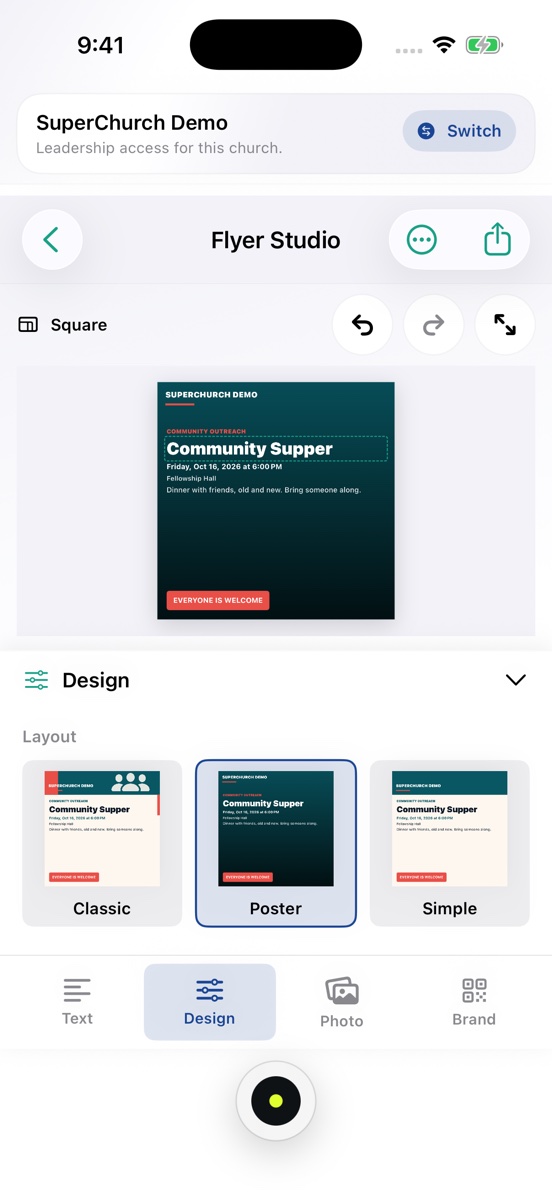
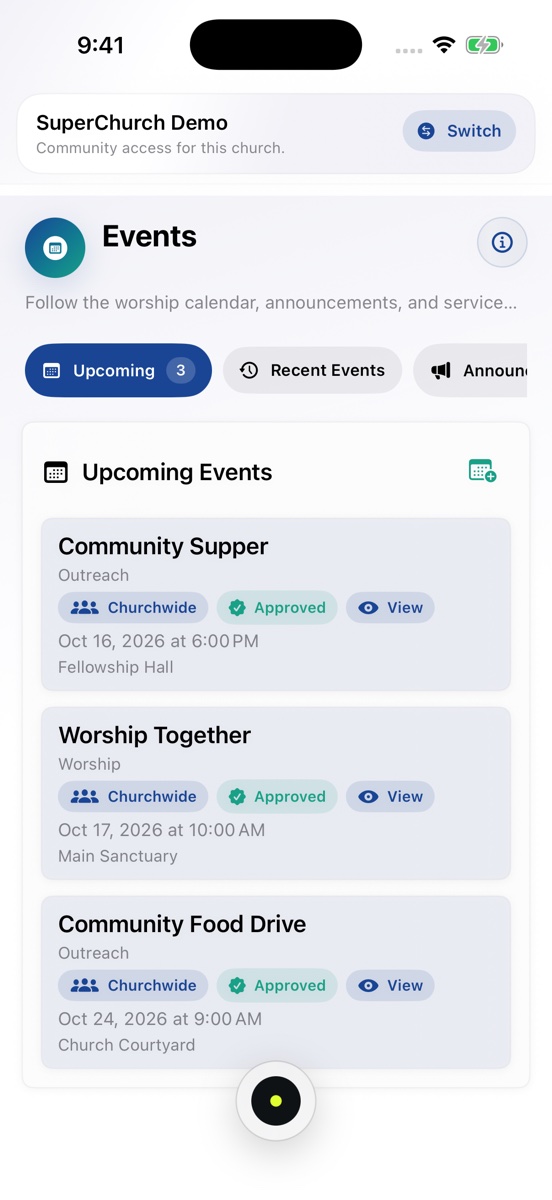
Flyer Studio in SuperChurch showing an editable church invitation
App demonstration with sample church data.

Service preparation

Give the team one clear schedule

Put each role, volunteer and arrival time in one place. Leave unfilled roles visible so the team knows what still needs attention.

  1. Open the free schedule tool and enter the church, gathering date, start time and location.
  2. Add one row for each job: doors, welcome desk, sound, slides or another role your gathering needs.
  3. Enter the assigned name and how many minutes before the gathering that person should arrive. Check any previous-day warning when working around midnight.
  4. Review the roster. Move rows into a useful order and check the unfilled assignments before sharing.
  5. Copy the text, download a CSV, or use Print / PDF. Send the roster through the team's normal channel and confirm who received it.

The browser tool does not save names to SuperChurch, notify volunteers or record attendance. Keep the exported schedule. For church-linked assignments and check-in, use the authorized volunteer tools inside the app.

Church events and volunteer tools in SuperChurch
Church-linked tools in the app are separate from the standalone roster.

Your church online

Share a gathering without sharing private church work

Public invitations and internal plans have different audiences. Keep confidential meetings, attendance, care notes and contact lists out of public pages.

  1. In the church's website settings, publish its hosted website and make the Events section visible.
  2. Create the gathering in SuperChurch. Set its audience deliberately: only an approved event explicitly marked public can appear on the public website.
  3. Open the published church website and select the event title. Check its date, time, location and description as a visitor would see them.
  4. Use Share event for the link or Add to calendar for a calendar file. The calendar file is a snapshot, not a subscribed calendar.
  5. If the church also has another website, open the embed tool, paste the public SuperChurch church address and copy the event-widget code into that site's embed block.

Approval alone does not make an event public. Private, cancelled, deleted or withdrawn events do not appear on these pages. Hiding Events or switching the hosted website off also disables its event widget. Existing downloaded files and third-party search caches cannot be recalled.

Connected tools

Build on the church's existing information

The scoped HTTPS API can supply public church profiles, approved events and live status to a church-controlled server. A separately granted permission can submit an event draft for church approval.

Start with the Postman collection or server-side JavaScript SDK. Keep the key on a server, use only the scopes you need, and never commit the key to a repository or put it in browser code.